Infinite Scrolling in React with Redux and Redux-Saga (Part II: UI and Scroll Handling)
October 16, 2019 · 6 min read
Update — 2026-04-04: This post has been updated to improve clarity and structure. Key changes include clearer component explanations, fixed formatting, corrected code presentation, and proper media paths.
More on this series:
Part I ⋮ Part III
Introduction
In this part, the focus is on the frontend: setting up the component structure, detecting scroll position, and fetching more data when the user reaches the bottom.
The component tree will look like this:
Provider(React Redux wrapper)PokemonList(component with scrolling logic and API calls)PokemonListItem(stateless component used to display each Pokémon)
We will also add a few dependencies:
react-content-loaderfor the initial loading statebootstrapfor the grid systemlodashto simplify checks like whether the Redux array is emptynode-sassso Bootstrap can be imported from SCSS
yarn add react-content-loader bootstrap lodash node-sass
Rename app.css to app.scss, then import Bootstrap at the top:
@import "~bootstrap/scss/bootstrap";
Creating the PokemonList component
Create the file first:
touch src/components/PokemonList.js
Now connect Redux to the component. This component will dispatch two action creators: loadPokemonList and loadMorePokemon. It will also keep local state to track the current pagination offset sent to the endpoint.
import _ from "lodash";
import React, { Component } from "react";
import { connect } from "react-redux";
import { bindActionCreators } from "redux";
import { loadPokemonList, loadMorePokemon } from "../redux/modules/pokemonList";

class PokemonList extends Component {
  constructor(props) {
    super(props);
    this.state = {
      currentCount: 20,
    };
  }
}

const mapStateToProps = (state) => ({
  isLoading: state.pokemonListReducer.isLoading,
  error: state.pokemonListReducer.error,
  pokemonList: state.pokemonListReducer.pokemonList,
});

const mapDispatchToProps = (dispatch) => {
  return bindActionCreators(
    {
      fetchActionCreator: loadPokemonList,
      loadMoreActionCreator: loadMorePokemon,
    },
    dispatch,
  );
};

export default connect(
  mapStateToProps,
  mapDispatchToProps,
)(PokemonList);
This maps the Redux state needed for the component, including loading and error states. It also uses bindActionCreators so the action creators are available on props with clearer names.
Fetching data on mount
The first request should happen when the component mounts:
componentDidMount() {
  const { fetchActionCreator } = this.props;
  fetchActionCreator();
}
That triggers the Redux flow and eventually results in either a success response or an error.
Initial loading state
To handle the first load, create a component with react-content-loader:
touch src/components/ListItemLoader.js
import React from "react";
import ContentLoader from "react-content-loader";

const ListItemLoader = () => {
  return (
    <ContentLoader
      height={507}
      width={900}
      speed={2}
      primaryColor="#f3f3f3"
      secondaryColor="#ecebeb"
    >
      <rect x="30" y="20" rx="0" ry="0" width="130" height="23" />
      <rect x="30" y="60" rx="0" ry="0" width="200" height="120" />
      <rect x="30" y="189" rx="0" ry="0" width="200" height="15" />
      <rect x="30" y="211" rx="0" ry="0" width="140" height="15" />
      <rect x="243" y="60" rx="0" ry="0" width="200" height="120" />
      <rect x="243" y="189" rx="0" ry="0" width="200" height="15" />
      <rect x="243" y="211" rx="0" ry="0" width="140" height="15" />
      <rect x="455" y="60" rx="0" ry="0" width="200" height="120" />
      <rect x="455" y="189" rx="0" ry="0" width="200" height="15" />
      <rect x="455" y="211" rx="0" ry="0" width="140" height="15" />
      <rect x="667" y="60" rx="0" ry="0" width="200" height="120" />
      <rect x="667" y="188" rx="0" ry="0" width="200" height="15" />
      <rect x="667" y="209" rx="0" ry="0" width="140" height="15" />
      <rect x="30" y="280" rx="0" ry="0" width="130" height="23" />
      <rect x="30" y="320" rx="0" ry="0" width="200" height="120" />
      <rect x="30" y="450" rx="0" ry="0" width="200" height="15" />
      <rect x="30" y="474" rx="0" ry="0" width="140" height="15" />
      <rect x="243" y="320" rx="0" ry="0" width="200" height="120" />
      <rect x="455" y="320" rx="0" ry="0" width="200" height="120" />
      <rect x="667" y="320" rx="0" ry="0" width="200" height="120" />
      <rect x="243" y="450" rx="0" ry="0" width="200" height="15" />
      <rect x="455" y="450" rx="0" ry="0" width="200" height="15" />
      <rect x="667" y="450" rx="0" ry="0" width="200" height="15" />
      <rect x="243" y="474" rx="0" ry="0" width="140" height="15" />
      <rect x="455" y="474" rx="0" ry="0" width="140" height="15" />
      <rect x="667" y="474" rx="0" ry="0" width="140" height="15" />
    </ContentLoader>
  );
};

export default ListItemLoader;
Then update PokemonList to show it during the first load:
render() {
  const { isLoading, error, pokemonList } = this.props;

  if (_.isEmpty(pokemonList) && isLoading) return <ListItemLoader />;
  if (error) return <p>Error</p>;

  return <div>{pokemonList.length}</div>;
}
The loader only appears on the first load. Later, when scrolling is implemented, a spinner will be used instead.
Wrapping the app with Provider
Now update App.js:
import React from "react";
import { Provider } from "react-redux";
import configureStore from "./redux/configureStore";
import "./App.scss";
import PokemonList from "./components/PokemonList";

const store = configureStore();

function App() {
  return (
    <Provider store={store}>
      <div className="container">
        <PokemonList />
      </div>
    </Provider>
  );
}

export default App;
At this point, the initial load should show the content loader, and the final count should be 20, which matches the endpoint limit.

Adding scroll detection
The next step is implementing the scroll logic. The condition below checks whether the user has reached the bottom of the scrollable container.
handleScroll = (event) => {
  const { loadMoreActionCreator } = this.props;
  const { currentCount } = this.state;
  const element = event.target;

  if (element.scrollHeight - element.scrollTop === element.clientHeight) {
    loadMoreActionCreator(currentCount);
    this.setState({
      currentCount: currentCount + 20,
    });
  }
};
When the condition is met, the component dispatches loadMoreActionCreator and increments the offset by 20.
Rendering the list
With the scroll logic in place, the render method becomes:
render() {
  const { isLoading, error, pokemonList } = this.props;

  if (_.isEmpty(pokemonList) && isLoading) return <ListItemLoader />;
  if (error) return <p>Error</p>;

  return (
    <div className="border m-5">
      <div
        className="row"
        onScroll={this.handleScroll}
        style={{ height: "500px", overflow: "auto" }}
      >
        {pokemonList.map((pokemon) => {
          const { url, name } = pokemon;
          const id = getId(url);

          return (
            <div key={pokemon.url} className="col-sm-3">
              <PokemonListItem id={id} name={name} />
            </div>
          );
        })}
      </div>

      {isLoading && (
        <div className="text-center">
          <div
            className="spinner-border"
            style={{ width: "4rem", height: "4rem" }}
            role="status"
          >
            <span className="sr-only">Loading...</span>
          </div>
        </div>
      )}

      <p className="text-muted ml-3">
        Displaying {pokemonList.length} pokemon of 807
      </p>
    </div>
  );
}
A couple of things are happening here:
- the outer
divwraps the content - the scrollable
divcontains the mappedPokemonListItemcomponents - a spinner appears while more data is loading
- the footer shows how many Pokémon are currently displayed
Helper for extracting the Pokémon ID
Create the helper:
touch src/helpers/pokemonUtils.js
export const getId = (url) => {
  return url
    .split("/")
    .filter((el) => !!el)
    .pop();
};
This extracts the Pokémon ID from the url field in the response.
PokemonListItem
The presentation component is straightforward:
import _ from "lodash";
import React from "react";

const PokemonListItem = ({ id, name }) => {
  return (
    <>
      <div>
        <img
          className="d-block mx-auto"
          src={`https://raw.githubusercontent.com/PokeAPI/sprites/master/sprites/pokemon/${id}.png`}
          alt={name}
        />
      </div>
      <div className="text-center">
        <p>{_.capitalize(name)}</p>
      </div>
    </>
  );
};

export default PokemonListItem;
This is where getId becomes useful, since the Pokémon image URL depends on the extracted ID.
Final result
If everything is wired correctly, the result should look like this:
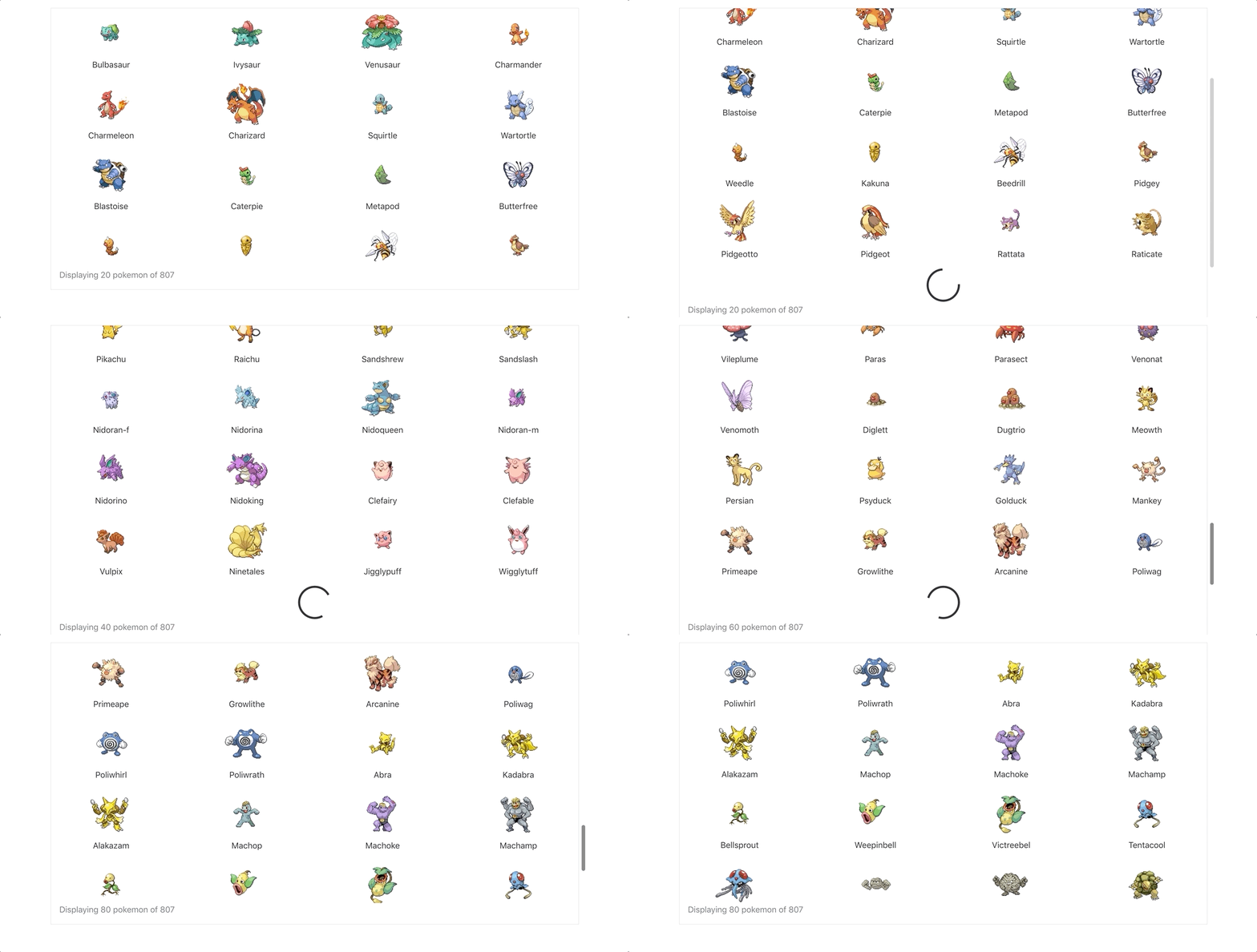
This is a practical way to fetch large datasets without introducing a paginator. It is similar to patterns used in apps like 9gag and works well when the goal is a smoother browsing experience.
The full implementation is available in the repo.